Unlock the Power of the Command Line: Master Terminal Mastery for Efficiency
Unlock the Power of the Command Line: Master Terminal Mastery for Efficiency
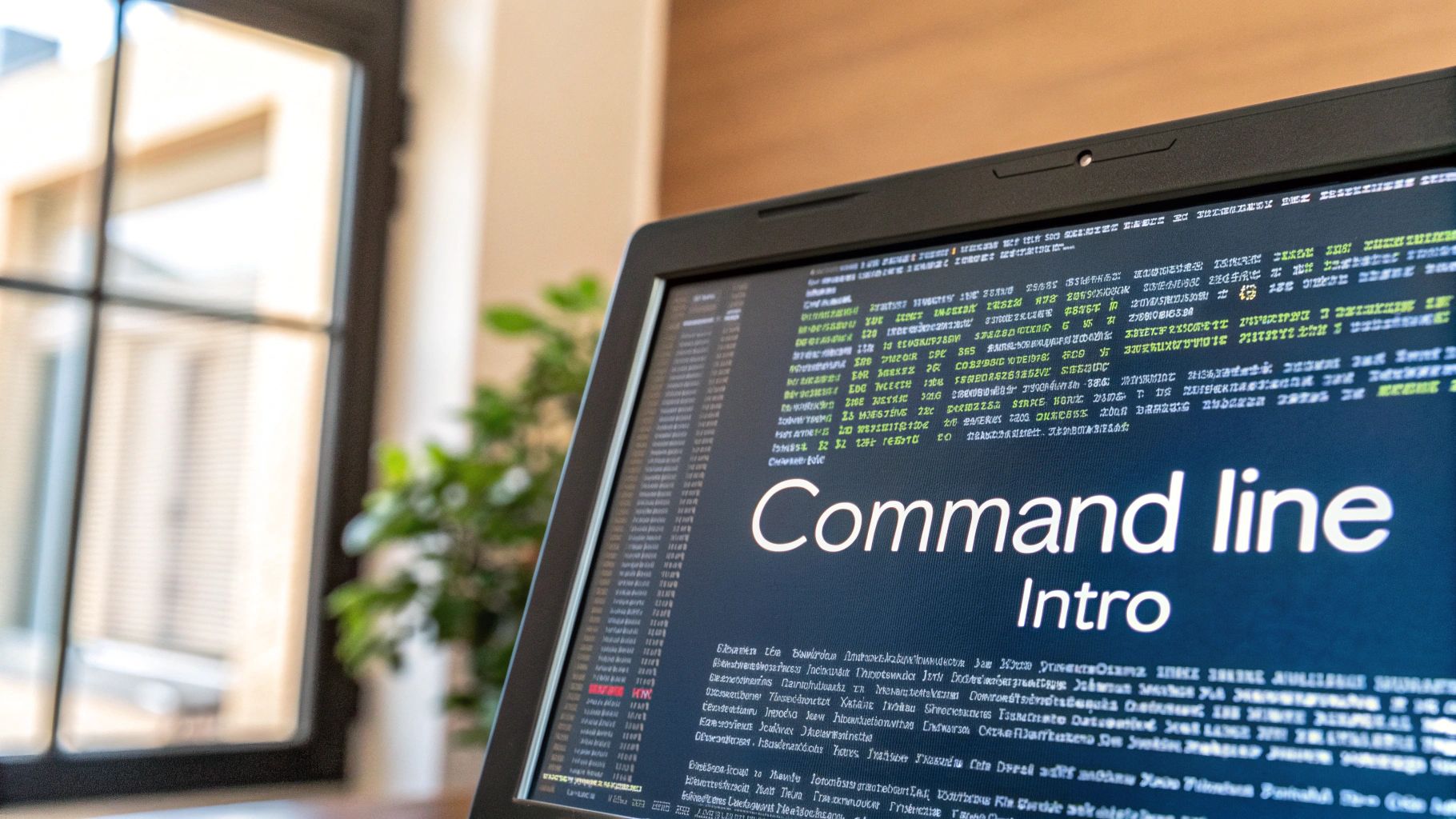
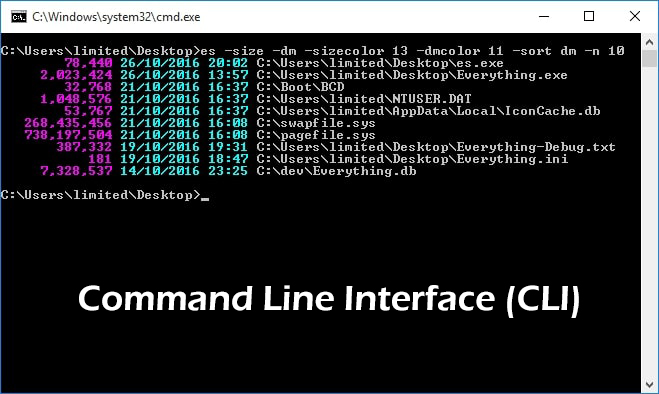
The Command Line Interface (CLI) remains a cornerstone of modern computing, enabling experts, developers, and power users to execute precise operations with speed and precision. Far beyond a relic of early computing, the CLI serves as a robust toolkit for system administration, automation, data processing, and software deployment—offering unmatched control over everything from individual files to complex server environments. With just a few keystrokes, users can navigate directories, launch applications, analyze logs, and script entire workflows, transforming repetitive tasks into automated, repeatable processes.
This deep dive explores how the CLI empowers users across platforms, the core commands that form its backbone, and why terminal proficiency continues to outpace GUI reliance in technical fields.
At the heart of CLI utility lies the shell—a command interpreter that processes inputs and interacts with the operating system’s kernel. Unix-like systems such as Linux and macOS rely on dominant shells including Bash, Zsh, and Fish, each with unique enhancements that streamline syntax and expand functionality.
Windows, through PowerShell and formerly Command Prompt, delivers a hybrid environment combining classical DOS commands with modern scripting capabilities. Whichever shell is used, the CLI enables direct, unmediated interaction, eliminating intermediate layers and reducing latency.
Core Command Line Commands Every User Should Know
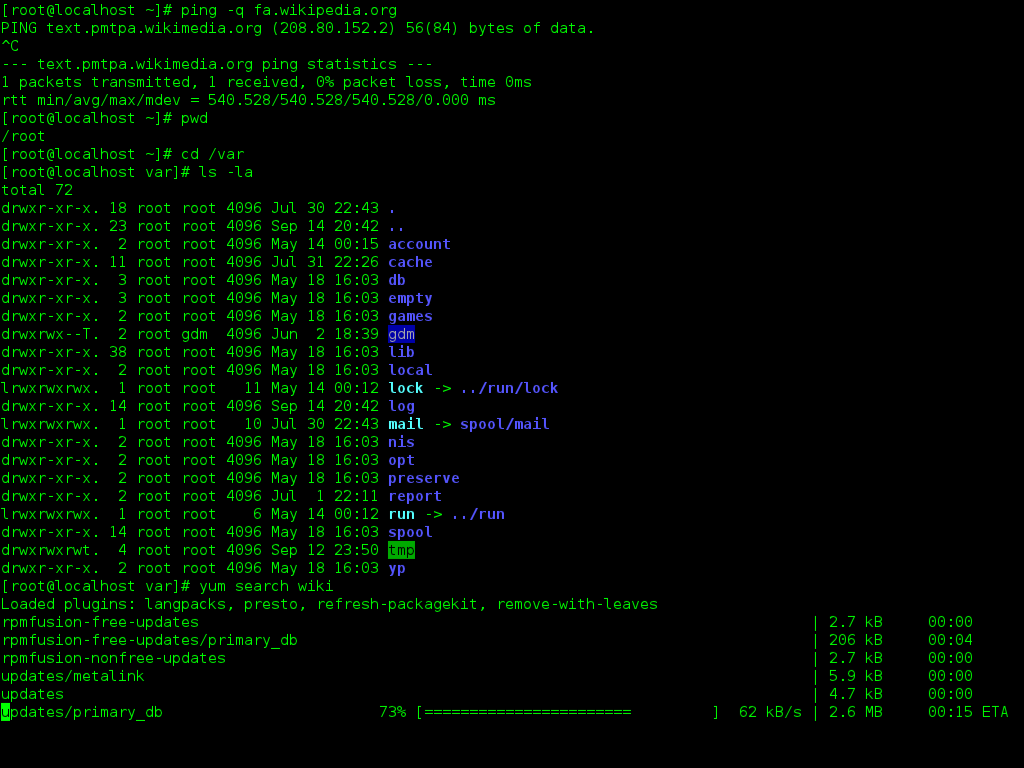
Mastering foundational commands is essential for efficient navigation. These tools form the backbone of terminal workflows: - `ls`: Lists directory contents with default details—files and folders.Use `ls -l` for extended information, including permissions and last modification dates, or `ls -a` to reveal hidden files. - `cd`: Changes the current directory. The command `cd ..` moves up one level, while `cd ~` returns to the home folder.
For multi-level navigation, `cd location/subdir` directs rapid traversal. - `pwd`: Prints the full path of the current working directory, a vital command when scripting or managing nested directories. - `man`: Short for “manual,” this tool displays comprehensive, system-specific documentation for any command, essential for learning syntax and options.
- `cp` and `mv`: Copy (`cp source destination`) and move/reshape (`mv source destination`) files and directories. Use `cp -r` for recursive copying, and `cp -n` to prevent overwrites. - `rm`: Removes files or directories.
`rm -r` deletes entire folders recursively, a powerful yet dangerous command requiring caution. - `echo`: Prints text or variable values to the terminal. Used in scripts to generate logs or display status messages.
- `grep`: Searches text files for patterns, filtering lines containing matched strings. Combined with `grep -r` recursively or `grep -v` to exclude matches, it becomes indispensable for log analysis. - `dir` (Windows) and `find` (Unix-like): Alternatives to `ls` on Windows PowerShell, with `find` enabling complex, hierarchical searches across directories.
These commands, while simple in form, unlock layers of automation and control when chained into scripts. Even advanced users reserve the CLI for its immediacy and precision, especially in environments where GUI access is limited or unavailable. File transfers via `scp` (secure copy) and system monitoring with `top` or `htop` further demonstrate CLI versatility.
Scripting: Automate the Mundane with Powerful Shell Scripts
A defining strength of the Command Line Interface lies in automation through shell scripting.By composing


Related Post
Masters the Terminal: Unlocking Precision with the Define Command Line Interface
Mastering the CLI: Command Line Interface Examples That Transform Workflow

What Is a Command Line Interface: The Power Behind the Terminal
What Is Command Line Interface: The Power Behind Text-Based Mastery


